
Download ASIS Backup – Secure Bootable Disk Backup Tool for Windows
Overview & Core Features
ASIS Backup is a lightweight, trial‑version backup utility designed specifically for Windows 2000 and earlier operating systems. First added to our catalog in 2006, the software has accumulated 397 installations to date and continues to be a reliable choice for users who need to create bootable copies of their system disks. The current version, 2.2.0, was last updated on April 25 2006 and focuses on delivering a straightforward, secure backup experience without unnecessary bloat. Despite its age, ASIS Backup remains a viable solution for legacy hardware, offering a simple interface, fast cloning speed, and the ability to generate a fully bootable image that can be used for disaster recovery or system migration. The program is available only in English and is distributed as a free download, making it an attractive option for IT professionals and home users alike who are looking for a no‑cost solution to protect critical data on older Windows machines.
- Creates fully bootable backup images of entire disks or selected partitions.
- Supports legacy Windows versions (Windows 2000 and earlier).
- Lightweight installer that occupies minimal disk space.
- Simple, wizard‑driven user interface suitable for non‑technical users.
- Secure, read‑only backup files that prevent accidental modification.
- Supports incremental backups to reduce storage usage.
- Command‑line options for advanced automation and scripting.
Installation & Usage Instructions
Getting started with ASIS Backup is intentionally uncomplicated. After you download the installer, run the executable (ASISBackupSetup.exe) on a Windows 2000 or earlier system. The installer follows a classic wizard flow: accept the license agreement, choose an installation folder (the default path is usually C:\Program Files\ASISBackup), and click “Install”. Because the program is designed for older operating systems, it does not require .NET Framework or any additional runtime components, which keeps the installation footprint under 5 MB.
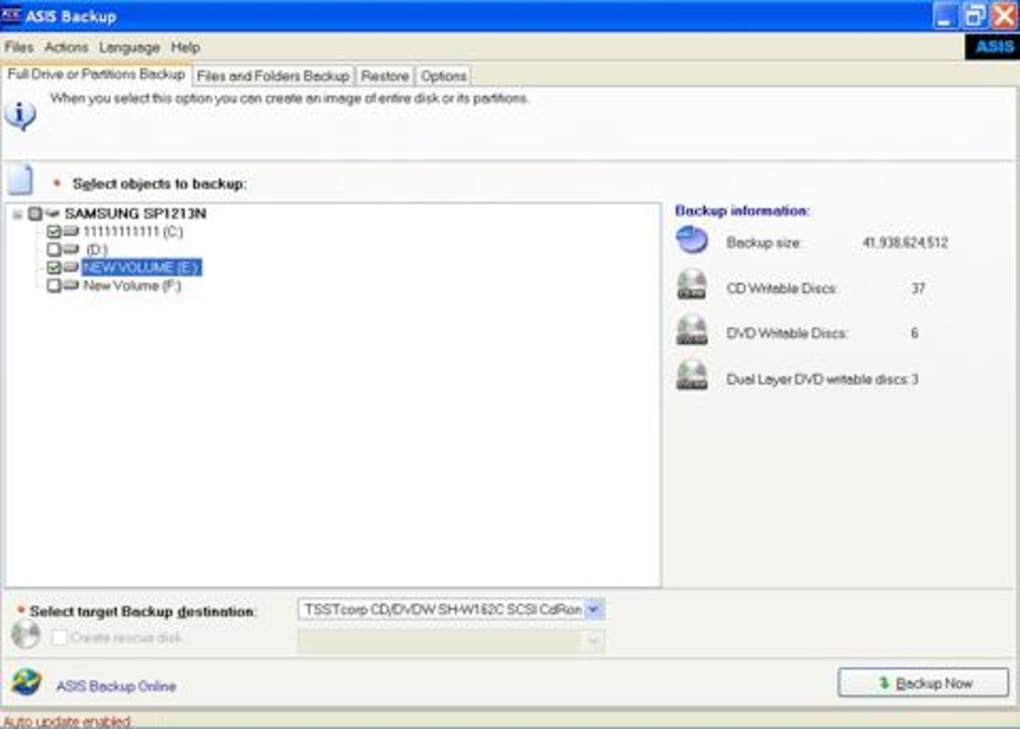
Once installed, launch ASIS Backup from the Start menu. The main window presents three primary options: “Full Disk Backup”, “Partition Backup”, and “Restore”. Selecting “Full Disk Backup” opens a step‑by‑step wizard.
First, choose the source drive you wish to clone. The software automatically detects all attached hard drives and displays their capacity and used space. Next, specify a destination for the backup image—this can be an external USB drive, a network share, or another internal partition.
ASIS Backup recommends a destination with at least 10 % more free space than the source drive to accommodate metadata and error‑checking information.
After configuring source and destination, you can enable optional features such as “Compress Backup” (which reduces file size at the cost of longer processing time) or “Verify Image” (which runs a checksum after creation to ensure integrity). Click “Start” to begin the cloning process. The progress bar updates in real time, showing both percentage completed and estimated time remaining. For larger disks, the process can take anywhere from a few minutes to over an hour, depending on drive speed and selected options.
Restoring a backup follows a similar wizard. Launch the program, choose “Restore”, locate the previously created image file, and select the target disk. ASIS Backup will overwrite the target drive, turning it into an exact, bootable replica of the original system. It is crucial to double‑check the target disk before confirming, as the operation is irreversible. After restoration, you can reboot directly from the restored disk without any additional configuration—ASIS Backup ensures that the bootloader and system files are correctly placed.
Compatibility, Pros & Cons, and Final Thoughts
ASIS Backup is built exclusively for legacy Windows environments. Officially supported operating systems include Windows 2000, Windows 98, and Windows ME. Because it predates modern driver models, the software does not support Windows XP, Vista, 7, or later versions. Users with newer systems can still run ASIS Backup within a virtual machine that emulates an older Windows OS, but native performance will be limited. The program’s minimal system requirements make it ideal for older hardware with as little as 64 MB of RAM and a 200 MHz processor.
Pros
- Free and lightweight—ideal for machines with limited resources.
- Creates truly bootable images, allowing instant system recovery.
- Simple, wizard‑driven UI that requires no technical expertise.
- Supports incremental backups, saving storage space over time.
- Command‑line interface enables automation for power users.
Cons
- Only works with outdated Windows versions; no support for modern OSes.
- Last update was in 2006, so the software lacks recent security enhancements.
- No native support for SSDs or modern file systems like NTFS 5.0+.
- Limited documentation and community support due to its age.
- The trial version may impose restrictions on backup size or number of runs.
In conclusion, ASIS Backup remains a solid choice for users maintaining legacy Windows workstations or needing a no‑cost solution to create bootable disk images. Its straightforward interface, low footprint, and reliable cloning capabilities outweigh the drawbacks of an older codebase, especially when used in environments where newer backup tools are overkill or incompatible. If you run a vintage PC, a legacy server, or simply need a quick way to snapshot a Windows 2000 system, downloading ASIS Backup today can provide a secure, hassle‑free backup experience. Ready to protect your old Windows machine? Click the download button below to get the latest trial version and start creating bootable backups in minutes.
Frequently Asked Questions
Can ASIS Backup be used on Windows XP or later?
No. ASIS Backup was designed for Windows 2000 and earlier versions. It does not support Windows XP, Vista, 7, 8, 10, or 11. Users can run it in a virtual machine that emulates an older Windows OS, but native operation is limited to legacy systems.
Is the backup image created by ASIS Backup truly bootable?
Yes. ASIS Backup writes a complete, sector‑by‑sector copy of the source drive, including the bootloader and system partitions, so the resulting image can be restored to a new disk and boot directly without additional configuration.
Does the trial version limit the size of backups?
The trial version may impose a limit on the number of backup sessions or display occasional prompts to purchase the full license. However, it does not restrict the physical size of the backup image itself.
Can I schedule automatic backups with ASIS Backup?
Yes. By using the built‑in command‑line parameters, you can create scheduled tasks in Windows Task Scheduler to run backups at predefined intervals, enabling automated protection of your data.
Is the backup file encrypted for security?
ASIS Backup does not provide built‑in encryption. For sensitive data, you should store the backup image on an encrypted external drive or use third‑party encryption tools before archiving.







